

Description
MORE THAN A CACHING PLUGIN
WP-Optimize is trusted by more than 1 million WordPress website owners to boost performance and reduce page load times to improve your site’s user experiences and SERP rankings in Google.
It does this in four clever ways:
1. It caches your site
Caching is the process of storing a temporary HTML version of your site on the server so it can be retrieved more quickly for the user.
It’s a sure-fire way to ensure web pages load at lightning-fast speed. Turn it on in just one click.
2. It compresses images
Large images can really impact page speed load times. WP-Optimize makes it easy to identify and compress images to your preferred lossy / lossless settings in a couple of clicks.
3. It cleans the database
Your WordPress database stores everything that you need, plus some things that you don’t. WP-Optimize cleans and optimizes the database to speed up your site and save server resources.
4. It minifies
On top of its three main features, WP-Optimize Cache also has the more advanced minification feature.
Together with caching, minification dramatically improves performance and page speed load time.
1. CACHE YOUR SITE
Turn on caching in just one click:
WP-Optimize automatically and optimally configures itself for your WordPress site. Turn it on in one-click or refine its settings if you prefer.
More cache features:
-
Cache preloading: This feature emulates a visit to your site, meaning cached ... [truncated]
Installation
There are 3 different ways to install WP-Optimize Cache, as with any other wordpress.org plugin.
Using the WordPress dashboard
- Navigate to the ‘Add New’ in the plugins dashboard
- Search for ‘WP-Optimize’
- Click ‘Install Now’
- Activate the plugin on the Plugin dashboard
Uploading in WordPress Dashboard
- Download the latest version of this plugin from https://wordpress.org/plugins/wp-optimize/
- Navigate to the ‘Add New’ in the plugins dashboard
- Navigate to the ‘Upload’ area
- Select the zip file (from step 1.) from your computer
- Click ‘Install Now’
- Activate the plugin in the Plugin dashboard
Using FTP
- Download the latest version of this plugin from https://wordpress.org/plugins/wp-optimize/
- Unzip the zip file, which will extract the wp-optimize directory to your computer
- Upload the wp-optimize directory to the /wp-content/plugins/ directory in your web space
- Activate the plugin in the Plugin dashboard
wp plugin install wp-optimize --activateFrequently Asked Questions
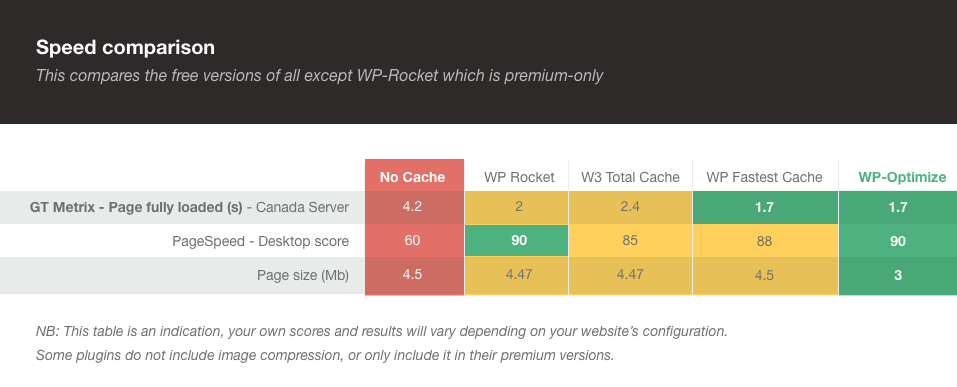
We’ve built WP-Optimize Cache around the most advanced and powerful caching technology. Our caching tests and feedback from real-world users show that the caching feature alone can make your site faster than any other cache plugin or optimization. See these speed test results.
Yes; optimizing does not involve any “tricks” or poking around in dangerous ways. It involves running routine clean-up operations using well-defined, common MySQL commands. Nevertheless, we always recommend backups, which cover every possibility; not just database malfunctions, but hacker... [truncated]
Changelog
4.3.0 – 22/Sep/2025
- FEATURE: Premium – Cache – Cache REST API requests
- FEATURE: Premium – Further reduce CSS files sizes by removing unused CSS rules
- FIX: Added backward compatibility for timezone and datetime functions and improved status report support for older WordPress versions like 4.9.
- FIX: PHP Warning file_exists(): open_basedir restriction in effect
- FIX: Prevented buffer initialization during wp-cron when HTML DOM is unavailable.
- REFACTOR: Database – Table Usage – Refactored execute_query_analysis() function
- TWEAK: Added new UpdraftCentral endpoints
- TWEAK: Enhanced multisite support: added performance widget to Network Dashboard and fixed sub-site widgets to show only site-specific 404 request counts.
- TWEAK: Fix external loading of Gtag analytics script
- TWEAK: Moved the tooltip tag outside the tag
- TWEAK: Performance – 404 Detect... [truncated]