
Description
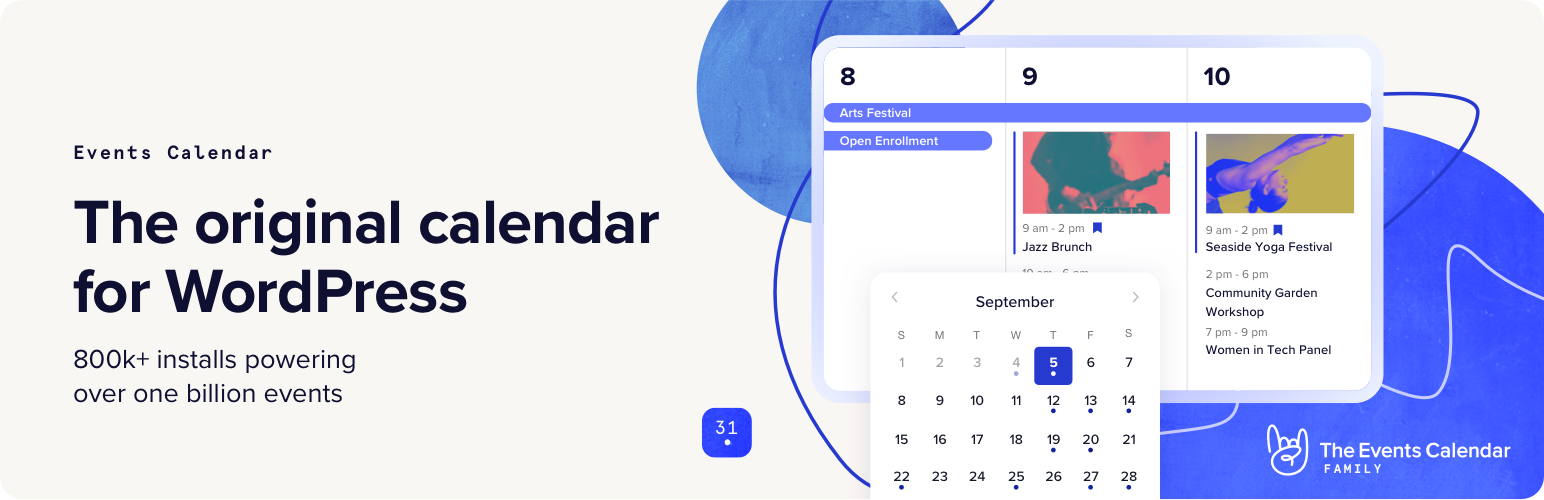
Easily create and manage an events calendar on your WordPress site with The Events Calendar free plugin. Whether your events are in-person or virtual events, this WordPress calendar plugin boasts professional features backed by our world-class team of developers and designers.
See more videos on our YouTube channel
Packed with loads of features, The Events Calendar is ready to go out of the box. It’s also extensible, easy to use, and completely customizable.
📅 The #1 Calendar for WordPress
See the calendar in action on our demo experience. Just getting started? Read through the New User Primer to get set up.
Looking for additional features like recurring events, ticket sales, user-submitted events, automatic imports, and more?
Check out Events Calendar Pro, Event Aggregator, and more add-ons.
🔌🎨 Plug and Play or Customize
The Events Calendar is built to work out of the box. Simply install the plugin, configure your settings, and start creating events in minutes.
Want to add your personal touch? Use The Events Calendar as the foundation for customization. Personalize to your heart’s content with the help of a skeleton stylesheet, partial template overrides, template tags, hooks and filters, careful documentation, and ... [truncated]
Installation
Installing the plugin is easy. Just follow one of the following methods:
Install The Events Calendar from within WordPress
- Visit the plugins page within your dashboard and select ‘Add New’
- Search for “Events Calendar”
- Activate The Events Calendar from your Plugins page
- You’re done!
Install The Events Calendar Manually
- From the dashboard of your site, navigate to Plugins –> Add New.
- Select the Upload option and hit “Choose File.”
- When the popup appears select the the-events-calendar-x.x.zip file from your desktop. (The ‘x.x’ will change depending on the current version number).
- Follow the on-screen instructions and wait as the upload completes.
- When it’s finished, activate the plugin via the prompt. A message will show confirming activation was successful. A link to access the calendar directly on the frontend will be presented here as well.
That’s it! Just configure your settings as you see fit, and you’re on your way to creating events in style. Need help getting things started? Check out our new user primer for help with settings and features.
wp plugin install the-events-calendar --activateFrequently Asked Questions
First, make sure that you’re running the latest version of The Events Calendar. If you’re running Events Calendar PRO or any other add-ons, make sure those are current / running the latest code as well.
The most common issues we see are either plugin or theme conflicts. You can test if a plugin or theme is conflicting by manually deactivating other plugins until just The Events Calendar is running on your site. If the issue persists from there, revert to the default Twenty Twenty theme. If the issue is resolved after deactivating a specific plugin or your theme, you’ll know that is the source of the conflict.
Changelog
[6.15.7] 2025-10-07
- Tweak – Added
aria-labelto nav tags to make page landmarks unique. [TEC-5208] - Tweak – Event Date time block structure updated to improve accessibility. [TEC-5531]
- Tweak – Change default opt-in status to prevent false positives in checks when the value is not set. [TEC-5583]
- Tweak – Add ARIA landmark roles and
aria-currentattributes to breadcrumbs to improve screen reader support. [TEC-5205] - Tweak – Replace breadcrumbs with a “Back to Events” link on Venue and Organizer single pages for clearer navigation and improved accessibility.[TEC-5207][TEC-5205]
- Tweak – Changed views:
blocks/event-datetime,v2/components/backlink,v2/components/breadcrumbs,v2/components/breadcrumbs/breadcrumb,v2/components/breadcrumbs/linked-breadcrumb,v2/components/header,